Overview
Follow this guide to learn how the Report List functions as your main dashboard within DI-LinkedIn and how to navigate, manage, and interact with your generated reports.
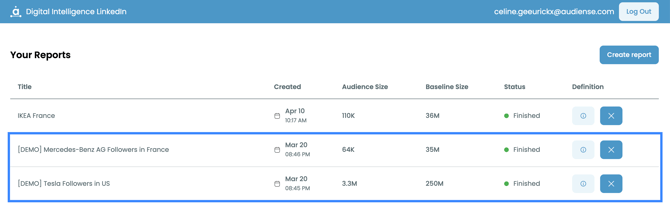
The Report List provides a centralized, organized view of all reports you’ve created, allowing you to quickly review key metrics, track report status, and perform common actions such as sharing, renaming, or deleting reports.
Accessing the Report List
When you log in to DI-LinkedIn, the Report List is displayed as the primary dashboard view.
This page automatically populates with all reports associated with your account.
Report Information Displayed
Each report in the list includes essential details to help you quickly understand its scope and status.
-
Report Name: Displays the title assigned to the report. This can be updated at any time using the rename option
-
Date Created: Shows when the report was originally generated.
-
Audience Size: Indicates the size of the audience included in the report.
-
Baseline Size: Displays the comparison audience size used as a reference point for analysis.
-
Status: Shows the current state of the report, such as completed, in progress, or processing.
Available Report Actions
Each report includes a set of actions that allow you to manage and share your data.
View Report Definition:
Opens the report configuration details, showing how the audience and filters were defined.
Share Report:
You can share reports in multiple ways, including:
-
Generating a public shareable link
-
Sharing directly within DI-LinkedIn (1-to-1 sharing)
Rename Report:
Allows you to update the report name to better reflect its content or purpose.
Delete Report:
Permanently removes the report from your dashboard.
Note: Deleted reports cannot be recovered.
Demo Reports
When you first access the Report List dashboard, you may see a set of demo reports.
These are pre-generated example reports designed to help you:
-
Explore the platform’s capabilities
-
Understand the types of insights available
-
Familiarize yourself with report layout and actions
Demo reports can be viewed and interacted with like regular reports but are intended for learning purposes.